The setup in one line: a laptop by the mixer, the mixer's booth or record out into an audio interface (or just the laptop's microphone), HDMI to the screen, Send to Screen 2. Turn on Autopilot, or play it yourself.
Why it works with any setup
It listens to the audio instead of plugging into your DJ software. So it doesn't matter whether you play rekordbox, Serato, Traktor, VirtualDJ, Engine, a pair of turntables or a USB stick in a CDJ — the visuals react to what the room hears: the kick, the bass, the highs and the shape of the track, including the build and the drop.
That also means there's nothing to break when your software updates, and nothing to set up when you play on someone else's decks.
At the booth
- Get the sound in. Best: run the mixer's booth or record out into an audio interface plugged into the laptop, and pick it as the input. It's a clean signal, with no crowd noise and no delay from the room. In a pinch, the laptop's microphone works.
- Get the picture out. HDMI from the laptop to the venue's
screen or projector, then Send to Screen 2. Click the picture on
the screen and it goes full screen (
Fswitches it on and off). - Run the Quick check (Setup → Test run). It tests the screen, the sound and MIDI in a few seconds.
- Play. Let Autopilot run it, or take over.
Autopilot: hold the build, go on the drop
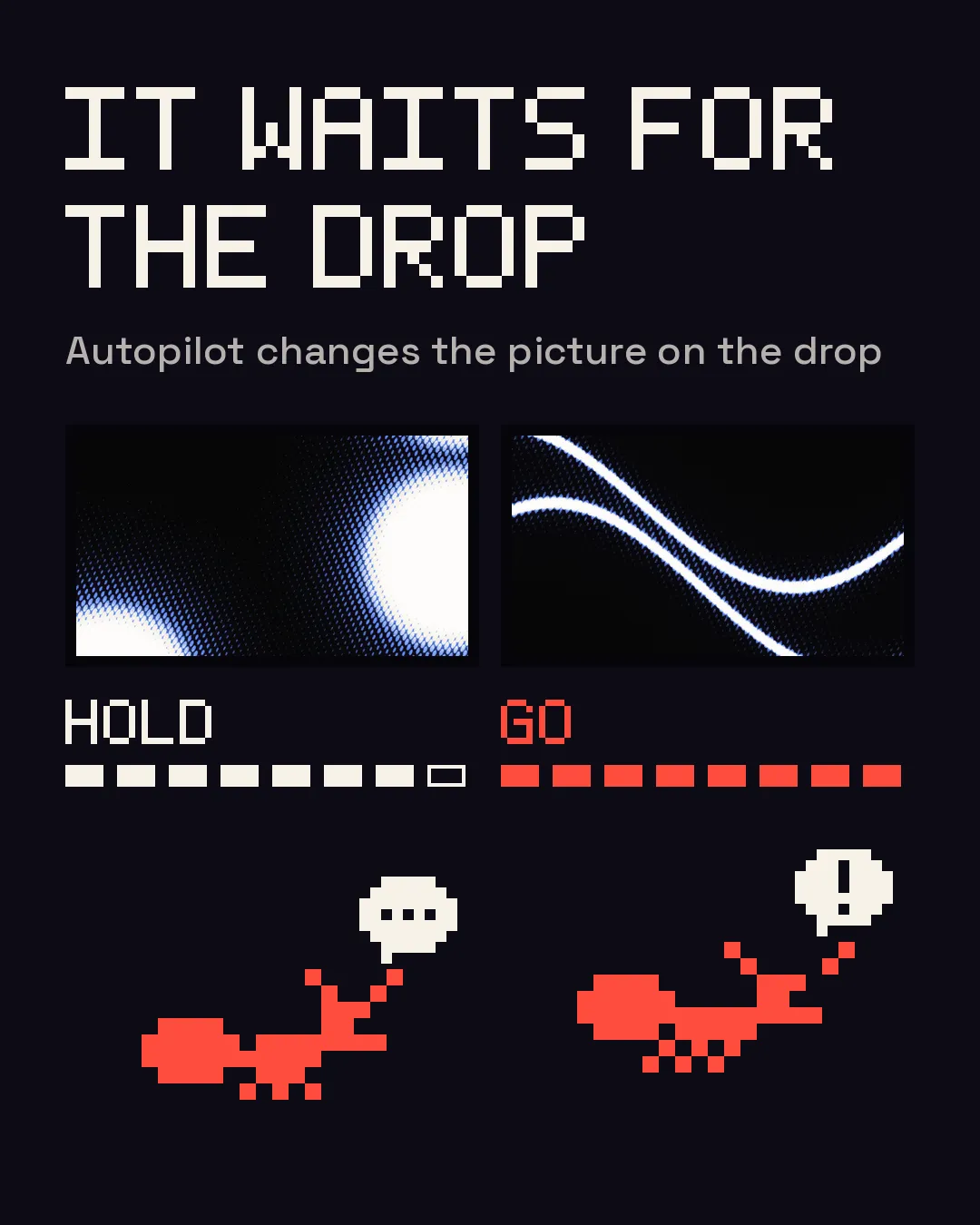
Plenty of visualizers react beat by beat. Autopilot also follows the shape of the track: it holds through the build and changes the picture on the drop, picking scenes and effects as the set moves. You can leave it running for a whole set, or switch it off the moment you want the controls.
Play it yourself
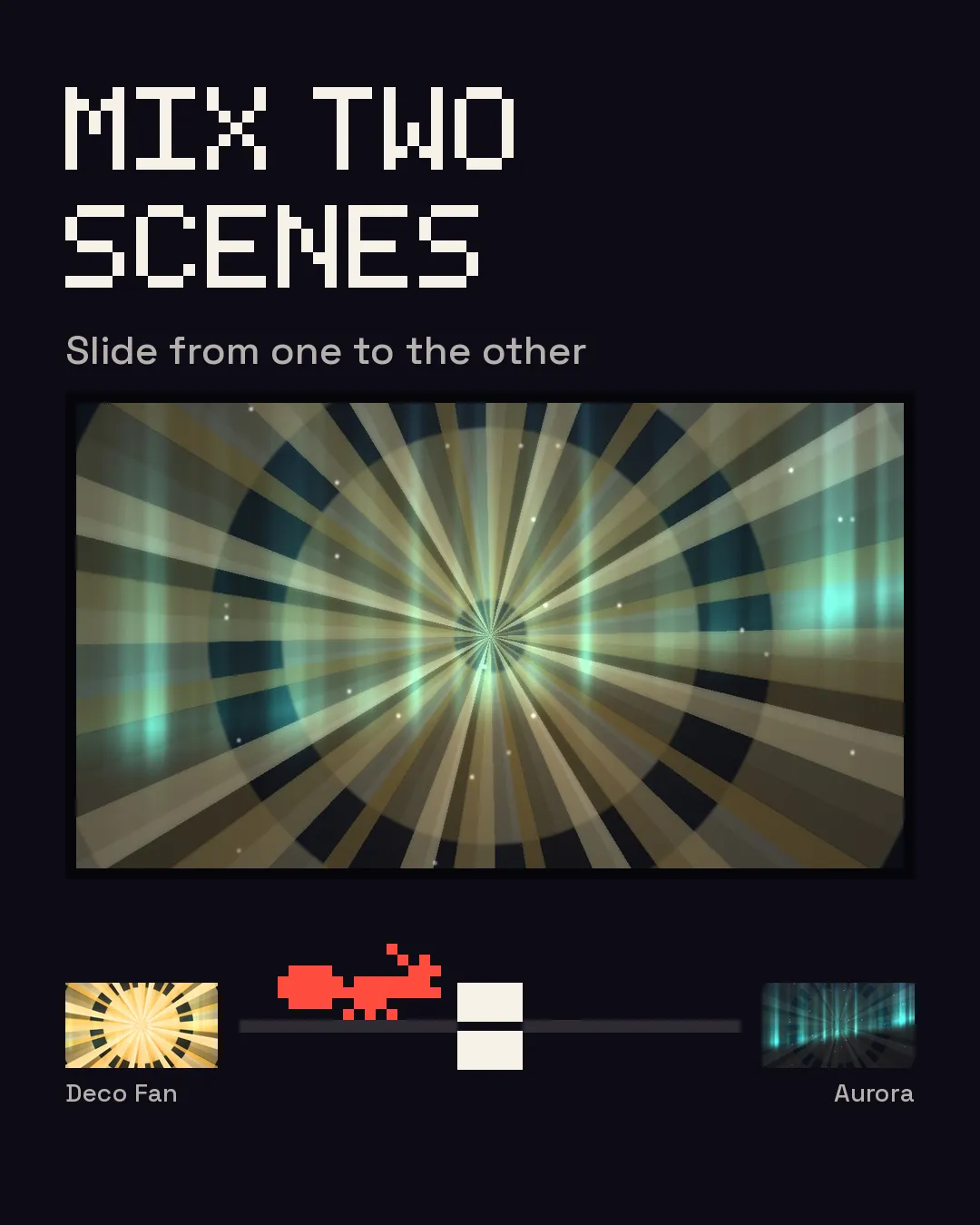
- Two decks and a crossfader — mix one scene into another, the way you mix tracks.
- 16 effects, one tap each — strobe, glitch, RGB shift, kaleido and more.
- 40 scenes, plus any shader you bring (see shaders).
- Tap tempo when you want it, though it finds the tempo by itself.
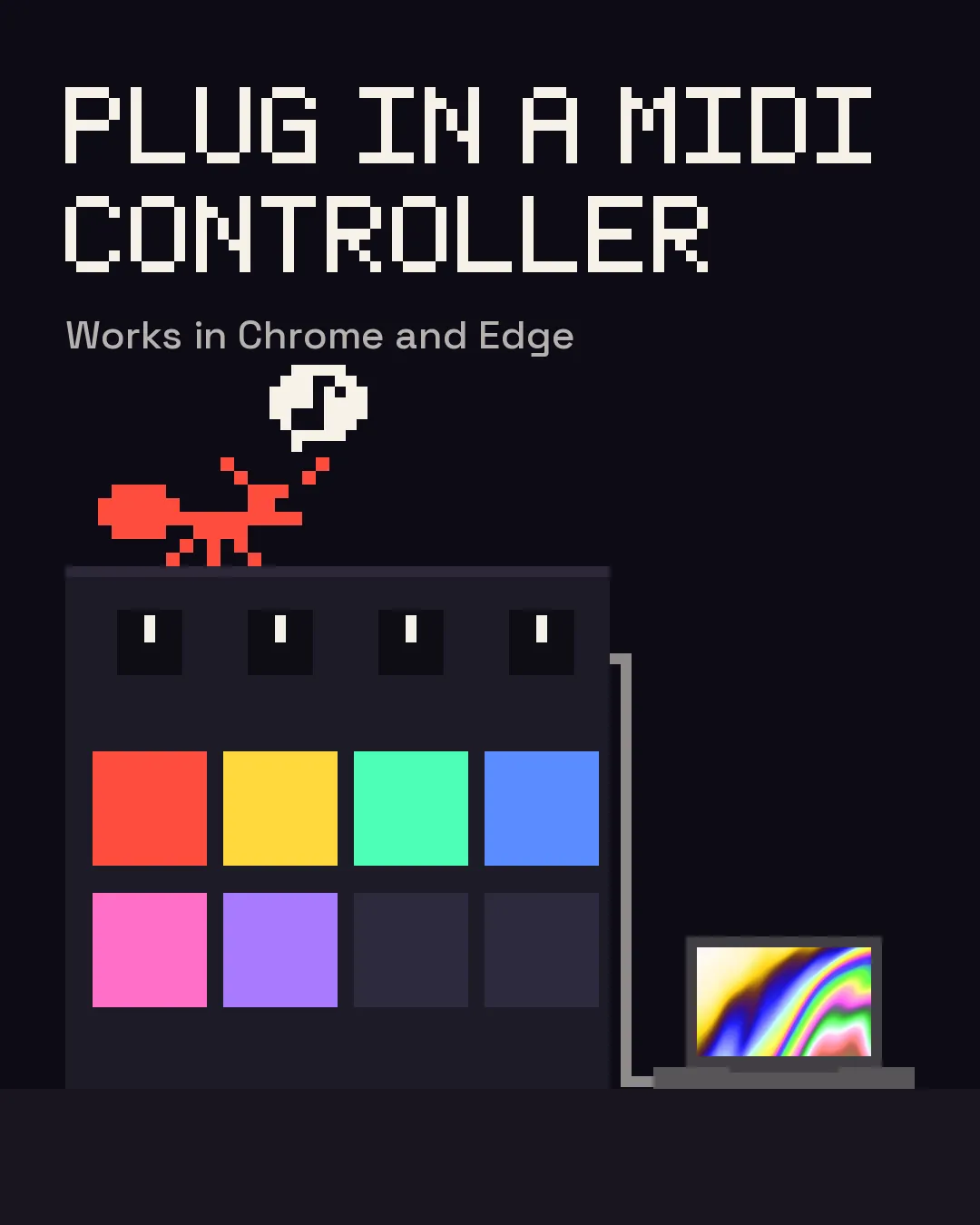
- MIDI controllers in Chrome and Edge, with mapping. A small pad controller beside your DJ controller is the comfortable way to play both.
Your name on the screen
The Logo layer puts your logo over the visuals; the Type layer puts your name, or the night's name, in big letters. The Type layer can pulse with the beat; the logo sits over the moving picture.
rekordbox, Serato, VirtualDJ, SoundSwitch
Dancy Ants doesn't integrate with any of them, on purpose: it follows the sound, so it works with all of them the same way.
- VirtualDJ has video features of its own. Dancy Ants is for when you want live visuals without changing how you DJ.
- SoundSwitch runs lights. Dancy Ants can run on the screen beside it; the two don't talk to each other.
- On the same laptop as your DJ software? It can run alongside if the machine has room to spare. A second laptop keeps the two apart and is safer for a long set.
Before a gig
- Open it once online. After that it keeps working without internet, which is the usual state of venue Wi-Fi.
- Run a Dress rehearsal before a long set (Setup → Test run): leave it running and it records the worst frame rate, memory growth and any errors.
- Mind the strobe. It's held to three flashes a second — the usual limit for people sensitive to flashing light — unless you switch that off. Venues may require a flashing-light warning.
- Record the screen to a video file for your socials.
Licence for paid gigs
The free version does everything and carries the Dancy Ants mark on the picture. For gigs you're paid for, the Commercial licence is $99, once, and runs on three machines at a time. If you already have Party ($39), you pay the difference.
Questions
Do I need an audio interface?
No — the microphone works. An interface on the booth or record out gives a cleaner signal that ignores the crowd.
Does it need to know the BPM?
No. It finds the tempo by itself. There's a tap button if you'd rather set it.
Can I use it with vinyl?
Yes. It only hears sound, so vinyl, CDJs and controllers are all the same to it.